
Blender to Nuke Workflow: Native Deep EXR, Camera Overscan & Per-Light Relighting
Stock Blender stops at flat EXR output—leaving compositors stuck with manual holdout re-renders, cropped black edges after lens distortion, and merged lighting layers that cannot be relit cleanly in 2D. Industrial CG Platform 5.2.4 LTS builds the missing studio render outputs directly into Blender 5.2: native Deep EXR compositing, camera overscan rendering (EXR Overscan), per-light direct/indirect passes, and a multi-layer pass manager (Windows x64 stable; public Linux Beta 1 pre-release available for testing).
Using a real multi-layer VFX shot, this guide walks through the full pipeline from Cycles to Foundry Nuke—combining Industrial CG Platform with our open-source companion tools: automated EXR export (Industrial AOV Connector), one-click Nuke light rebuilding (Auto Light Shuffle), and shared cross-software color management (AIO-OCIO).
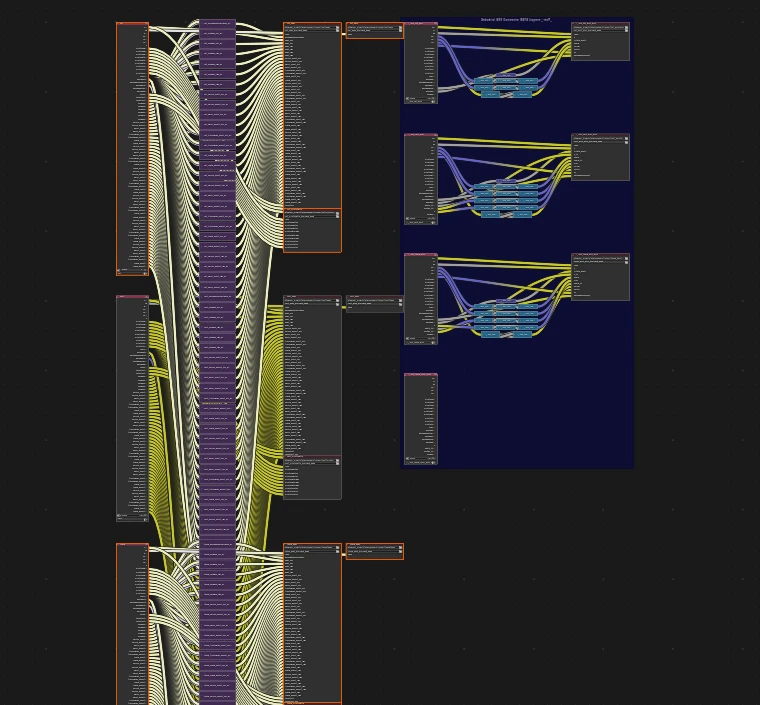
1. End-to-End Pipeline at a Glance
| Stage | Tooling | Key Output / Handoff |
|---|---|---|
| Scene Layering & Color | Multi-Layer Pass Manager (ViewLayer Manager) + Shared Color Config (AIO-OCIO) | Clean render layers (set, props, hero character, plus a dedicated geometry data layer) sharing one OCIO 2.0+ color config across Blender and Nuke |
| Cycles Render Setup | Native Deep EXR + Camera Overscan (EXR Overscan) + Per-Light Passes | Multi-sample 3D depth EXRs, padded overscan margins for lens distortion, and per-light direct/indirect diffuse, glossy, transmission, and volume passes |
| Compositor Export | Automated EXR Export (Industrial AOV Connector) (5.3.0) | Auto-built multi-layer export node tree separating Beauty, Deep, Cryptomatte mattes, and anti-aliased geometry data sequences |
| Nuke Deep & Light Comp | Foundry Nuke + One-Click Light Rebuild (Auto Light Shuffle) | Spatial depth merging (DeepRead → DeepMerge → DeepToImage) paired with an automatically rebuilt lightgroup relighting tree |
| Color & Final Delivery | AIO-OCIO in Nuke | Identical AgX / Filmic / ACES view transforms and clean final output cropped to the delivery frame |
2. What You Need
Install only the pieces your shot actually needs:
| Component | What It Solves | Platform / Requirement |
|---|---|---|
| Industrial CG Platform 5.2.4 LTS | Native Deep EXR compositing, camera overscan rendering (EXR Overscan), per-light direct/indirect passes, per-light shadow tinting, and the multi-layer pass manager | Windows 10/11 x64 stable ZIP (public Linux Beta 1 pre-release on Rocky Linux 8.10 available for testing) |
| Foundry Nuke | Downstream deep compositing (DeepRead / DeepMerge / DeepToImage), multi-pass relighting, lens distortion, and final delivery | Windows / Linux / macOS |
| Automated EXR Export (Industrial AOV Connector) (5.3.0) | Auto-builds multi-layer output trees, wires denoising, formats Nuke-ready depth/position/normal passes, disables redundant default renders, or provides a Fake Deep fallback | Blender 4.x / 5.x add-on (works on both Industrial CG Platform and stock Blender) |
| Stock-Blender Light Splitter (Industrial Light AOV Splitter) | Splits lightgroups into diffuse, specular, transmission, and volume passes when rendering on stock Blender without native per-light passes | Blender add-on |
| One-Click Nuke Light Rebuild (Auto Light Shuffle) | Reads Blender lightgroup EXRs in Nuke and builds a balanced Shuffle2/Merge2 relighting tree with labelled backdrops and preserved alpha | Foundry Nuke Python script (nuke_blender_autoaov.py) |
| Shared Color Config (AIO-OCIO) | Keeps AgX, Filmic, ACEScg, and camera log transforms visually identical between Blender and Nuke | OCIO 2.0+ config for Blender, Nuke, Maya, and Houdini |
3. Step 1 — Scene Layering & Color Alignment
Lock down your render layers and color configuration before turning on Deep or AOV outputs to avoid rework downstream:
- Organize render layers with batch presets: Open the Multi-Layer Pass Manager (ViewLayer Manager) next to Blender's top-right ViewLayer selector. Split major elements (environment, props, hero character, and a dedicated anti-aliased geometry data layer) and apply pass/lightgroup presets across multiple layers at once.
- Share one color config in both apps: Point Blender and Nuke to the same AIO-OCIO
config.ociovia theOCIOenvironment variable (or Blender's5.2/colormanagement/folder) so linear EXRs and AgX/ACES viewing transforms match without color shifts. See Blender Color Management Setup and General Software Setup. - Skip duplicate default renders: When using Industrial AOV Connector 5.3.0, keep Automatically Disable Default Render Output checked in Preferences so building or updating the export tree turns off Blender's default
Save Outputautomatically.
4. Step 2 — Render Native Deep EXR
Native Deep EXR writes multiple 3D depth samples and transparency values (Z, ZBack, RGBA) per pixel directly from Cycles, letting Nuke merge overlapping characters, fur, and smoke in 3D space without manual holdout mattes.
- Choose how to write Deep EXR:
- Quick single-layer output: In Output Properties > Output, set File Format to
Deep EXR(RGBA,16-bithalf-float or32-bitfull-float, losslessZIPScompression). - Multi-layer compositor output (recommended for production): Add a
File Outputnode (or let Industrial AOV Connector build it), set Node Format toImage→Deep EXR, and connect each ViewLayer'sImagesocket.
- Quick single-layer output: In Output Properties > Output, set File Format to
- Pick a Deep color mode (5.2.4 LTS): Under Render Properties > Performance > Deep, keep the default Lightweight Simple Mode (
Simple Mode) enabled to distribute undenoised Beauty color across depth samples with lower memory and file size. Uncheck it to switch to Physical Mode only when complex nested volumes require raw radiance recorded directly at every depth slice. - Set a VRAM ceiling: Under Render Properties > Performance > Memory, adjust the Deep VRAM Budget (
Deep Tile Budget) (default1024 MB, or0for unlimited). On high-resolution shots, Cycles automatically shrinks tile size to stay within GPU memory without reducing depth precision.
For full parameter tables and screenshots, see the Deep EXR Feature Manual and Blender Deep EXR in Nuke.
5. Step 3 — Enable Camera Overscan (EXR Overscan)
When Nuke applies lens undistortion/redistortion, camera shake, or 2D stabilization, standard framing clips into black borders. Camera Overscan (EXR Overscan) renders an extra outer pixel margin while keeping your delivery frame untouched, storing both the delivery crop (displayWindow) and expanded image bounds (dataWindow) in standard OpenEXR metadata.
- Confirm Render Engine is
Cyclesand Render Region is unchecked under Output Properties > Format (Overscan is automatically disabled while Render Region is active). - Set your output format to
OpenEXR,OpenEXR Multilayer, orDeep EXR. - Open Output Properties > Overscan (directly below Format) and enter percentage or pixel margins (for example,
15%to cover lens distortion padding).
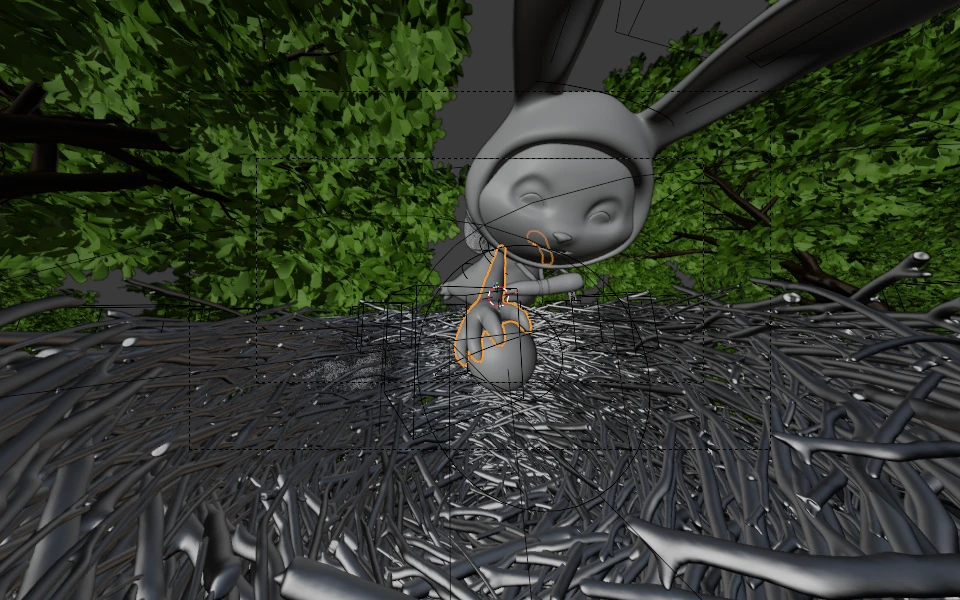
In Nuke, Read and DeepRead automatically pick up the delivery frame and outer bounding box, giving LensDistortion, Transform, and Blur real rendered pixels outside the crop. See the EXR Overscan Manual.
6. Step 4 — Per-Light Diffuse, Glossy & Volume Passes
To rebalance a single light's highlights, indirect bounce, or volume scatter in Nuke without re-rendering, enable Per-Light Passes (Lightgroup Lobe Passes):
- In View Layer Properties > Passes > Light, create your Light Groups (such as
env,key,fill01,fill02) and enable Light Pass AOVs. - Check the Direct and Indirect components you need (diffuse, glossy, transmission, volume) for each lightgroup.
- Verify energy balance in comp: summing all per-light passes (plus any emissive mesh
Combined_<lg>passes) reconstructs the exact Beauty image. See the Lightgroup Lobe Passes Manual.
Native Per-Light Passes vs. Stock-Blender Light Splitter
Industrial 3D provides two separate solutions depending on whether your team runs Industrial CG Platform or stock Blender:
| Dimension | Native Per-Light Passes (Lightgroup Lobe Passes) | Stock-Blender Light Splitter (Industrial Light AOV Splitter) |
|---|---|---|
| Blender Build Required | Industrial CG Platform 5.2.x (Cycles kernel native) | Stock Blender (Python add-on) |
| Split Granularity | Separate Direct + Indirect diffuse, glossy, transmission, and volume passes per lightgroup | Diffuse, specular, transmission, and volume passes per lightgroup |
| Scene Setup Rules | Uses Cycles' standard Lightgroup panel with no collection naming restrictions | Lights must live in lgt_* collections using alphanumeric names only (no underscores) |
| Nuke Auto-Rebuild | Recognized at top priority by Auto Light Shuffle | Recognized automatically by Auto Light Shuffle |
7. Step 5 — Compositing in Nuke
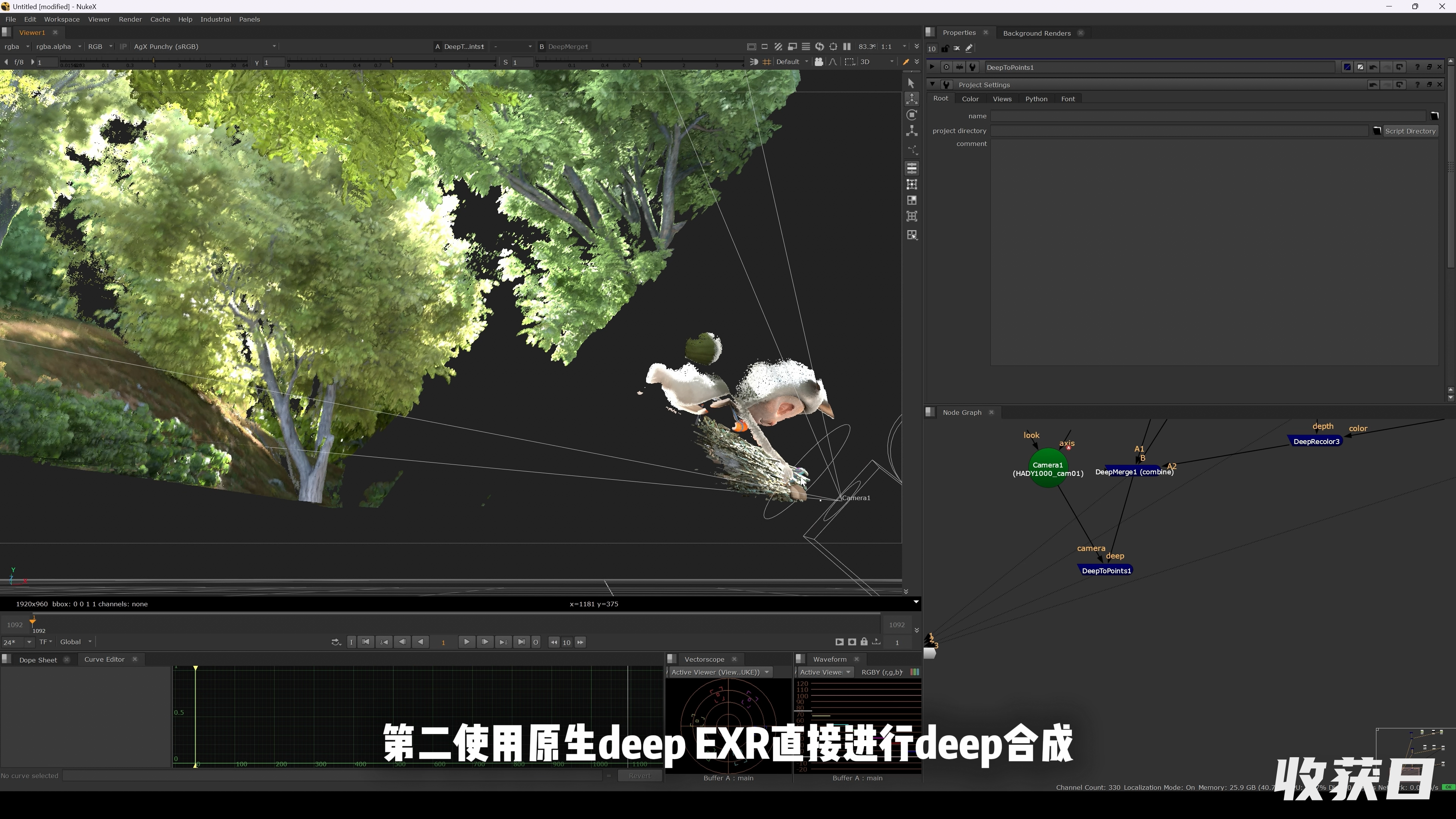
Deep Compositing Chain (DeepRead → DeepMerge → DeepToImage)
- Load each render layer's Deep EXR sequence with a
DeepReadnode (environment, props, character). - Combine overlapping CG layers using
DeepMerge: usecombinefor standard 3D depth merging, orholdoutto cut a foreground object cleanly out of a background deep stream. - If you relight or grade a layer in 2D using its per-light passes, feed both the graded 2D image and its matching Deep stream into
DeepRecolorbeforeDeepMergeso the graded RGB inherits exact 3D depth. - Flatten the combined deep stream back to 2D with
DeepToImagefor final grading, optical effects, and finalWrite.
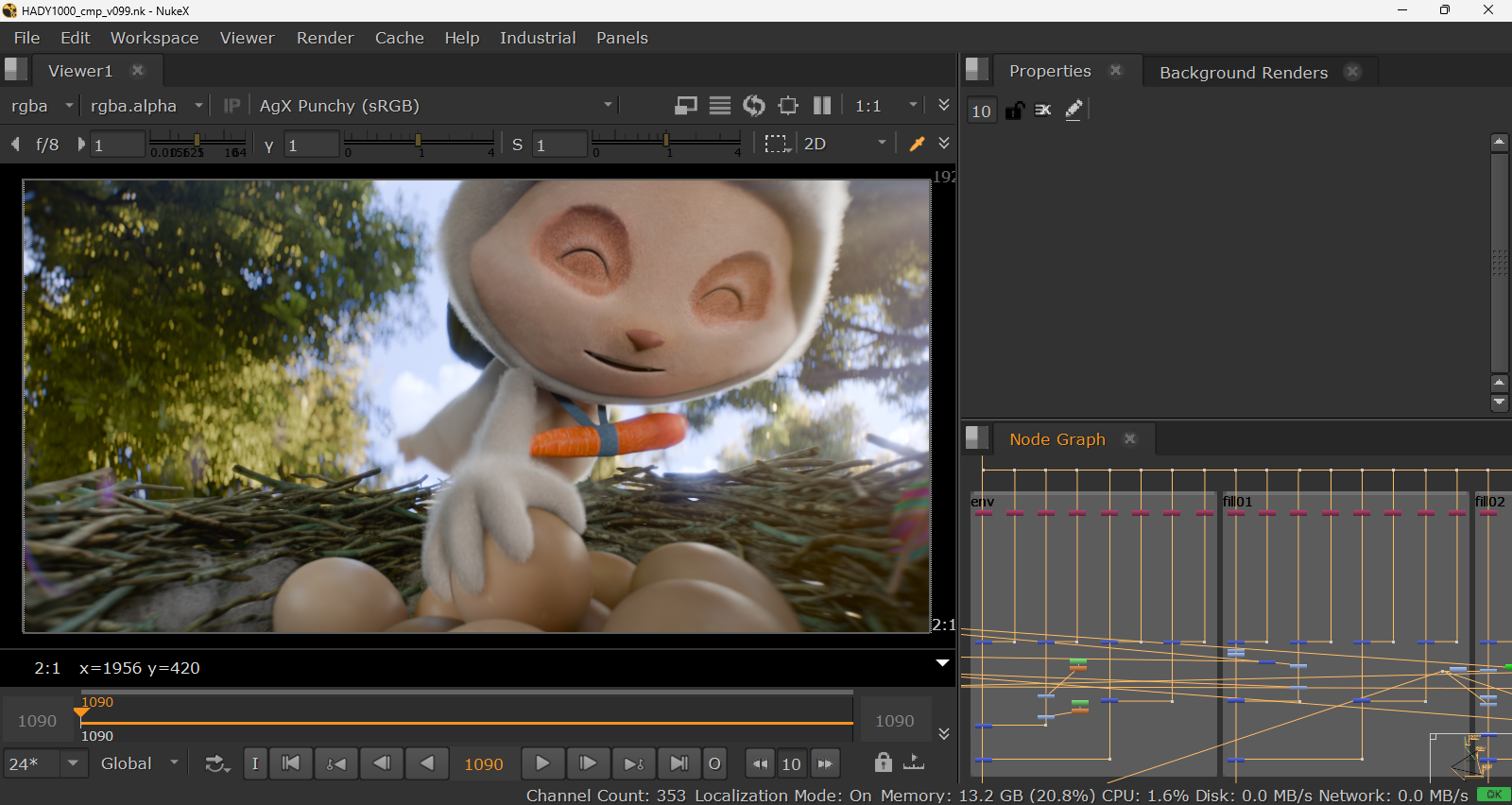
One-Click Lightgroup Rebuild (Auto Light Shuffle)
- Load the multilayer Beauty and per-light EXR with a standard Nuke
Readnode. - Select that
Readnode and run Auto Light Shuffle (nuke_blender_autoaov.py). - The script automatically detects every lightgroup, picks the finest available channels (
<lobe>_direct_<light>/<lobe>_indirect_<light>→<lobe>_<light>→Combined_<light>), builds a balancedShuffle2/Merge2tree wrapped in labelled grey backdrops, and preserves original alpha viaCopyandPremult.
Fake Deep Fallback When Native Deep Is Unavailable
If a shot must render on stock Blender—or only needs a clean single-layer depth map rather than multi-sample volumes—use the Fake Deep workflow built into Industrial AOV Connector to export an anti-aliased Z pass for Nuke's DeepFromImage node. See Fake Deep & Deep Compositing.
8. File Naming & Compositor Handoff Checklist
Consistent layer and channel naming lets Nuke templates and Auto Light Shuffle plug in without manual rewiring:
# Typical per-ViewLayer EXR outputs (generated by Industrial AOV Connector)
<shot>_<viewlayer>--RgBA.####.exr        # Beauty + Per-Light Passes (16-bit half EXR)
<shot>_<viewlayer>--Deep.####.exr        # Native Deep EXR (RGBA + 32-bit Z/ZBack, ZIPS)
<shot>_<viewlayer>--CryptoMaTTe.####.exr # 32-bit float Cryptomatte mattes
<shot>_<viewlayer>_DATA--DaTA.####.exr   # 32-bit float geometry data (Z, Position P, Normal, Vector)

# Cycles per-light pass naming convention
Diffuse_Direct_<lg> / Diffuse_Indirect_<lg>
Glossy_Direct_<lg>  / Glossy_Indirect_<lg>
Transmission_Direct_<lg> / Transmission_Indirect_<lg>
Volume_Direct_<lg>  / Volume_Indirect_<lg>
Compositor handoff checklist:
- Confirm the delivery crop resolution is exact and the overscan margin matches the shot brief.
- Confirm every Deep EXR sequence includes Alpha (
RGBA, required forDeepMerge) with losslessZIPSorRLEcompression. - Verify all per-light passes (including emissive mesh
Combined_<lg>passes) sum cleanly back to Beauty. - Share the exact AIO-OCIO config version and note the render working color space (
ACEScgorLinear Rec.709). - Keep Cryptomatte mattes and geometry data passes (
Z,P,Normal) at32-bit floatand un-denoised.
9. Troubleshooting
Standard Nuke diagnostic order for Blender Deep & AOV renders:
DeepRead -> DeepSample (inspect per-pixel Z / ZBack / Alpha samples)
         -> DeepRecolor (re-apply 3D depth to 2D relit imagery)
         -> DeepMerge (combine / holdout)
-> DeepToImage -> Reformat / Crop (verify delivery crop vs overscan bbox)- Soft edges or volume fringing in
DeepMerge: Inspect pixel samples with Nuke'sDeepSamplenode. If nearby samples are collapsing too aggressively, lower Depth Merge Tolerance (Deep Merge Tolerance) and Alpha Merge Tolerance (Alpha Merge Tolerance) (default0.010) in Blender's Deep EXR output settings. For strict physical radiance inside overlapping semi-transparent volumes, uncheck Simple Mode under Render Properties > Performance > Deep to use Physical Mode. - GPU out-of-memory on high-res Deep renders: Lower Deep VRAM Budget (
Deep Tile Budget) under Render Properties > Performance > Memory (default1024 MB). Cycles automatically shrinks effective tile size to stay within VRAM without losing Deep sample precision. - Overscan panel is greyed out: Confirm Render Engine is
Cyclesand Render Region is unchecked in Output Properties > Format. - Known current limitations: World environment volumes (World Volume) are currently unsupported in Deep EXR output, and full custom Deep metadata pass-through is planned future work rather than part of the 5.2.4 release.
10. FAQ
Can stock Blender do a full Deep EXR and Overscan workflow for Nuke?
Not natively. Stock Blender 5.2 does not include native Cycles Deep EXR output, standard OpenEXR overscan rendering, or per-light direct/indirect passes. You can still use our standalone tools (Industrial AOV Connector, Industrial Light AOV Splitter, Auto Light Shuffle, and AIO-OCIO) with stock Blender, but native Deep EXR and true camera overscan require Industrial CG Platform.
Do I need Industrial AOV Connector if I already use Industrial CG Platform?
It is optional for single-layer tests—you can write Deep EXR straight from Output Properties > Output. On multi-layer production shots, Industrial AOV Connector saves hours of repetitive wiring by automatically splitting Beauty, Deep, Cryptomatte, and geometry data outputs, connecting denoisers, and disabling redundant default renders.
When should I use native Deep EXR instead of Fake Deep?
Use native Deep EXR whenever objects intersect in 3D space—such as characters walking through smoke, overlapping fur, particles, or moving foliage—where each pixel needs multiple depth samples. Use Fake Deep only when you must render on stock Blender or when a clean single-layer Z depth pass is enough.
Should I render Deep EXR in Simple Mode or Physical Mode?
Start with the default Simple Mode: it uses less memory, writes smaller files, and renders faster for everyday production shots. Switch to Physical Mode (uncheck Simple Mode) only when complex nested semi-transparent volumes require raw radiance recorded directly at every depth slice.
Does this workflow run on Linux?
The current stable release (Industrial CG Platform 5.2.4 LTS, GPL-3.0-or-later) targets Windows 10/11 x64. A public Linux Beta 1 pre-release (industrial-cg-platform-5.2.4-linux-beta.1, built on Rocky Linux 8.10) is available for testing and feedback, while full native Linux GPU/OptiX and desktop qualification is still in progress. See Development Tracking and Releases.